- how-to
- electrical takeoff
- comparison
How to migrate from On-Screen Takeoff: what carries over
Migrating from On-Screen Takeoff to TakeOn: start a new bid, upload the plan PDFs, rebuild OST conditions as templates, then price and export. Nothing imports.
The TakeOn Team Updated 4 min read
In short: To migrate from On-Screen Takeoff (OST) to TakeOn, start your next new bid in TakeOn while OST stays installed. Upload the plan PDFs, check each sheet’s scale, rebuild the conditions you use most as templates, then count, measure, price and export. Nothing imports, so finish open bids in OST.
Key takeaways
- Plan the migration around a new bid, not an open one: TakeOn does not import OST projects, conditions or Quick Bid estimates.
- Rebuild the conditions you use on most jobs as TakeOn templates first. One template with properties can replace a row of OST conditions.
- Your plan PDFs, your prices in a spreadsheet and your own breakdown of a job carry over.
- Pricing moves into the same app: the takeoff becomes the Bid Summary and proposal, with no hand-off to a second product.
- Keep OST installed while you check your first TakeOn totals against a job you know.
How do you migrate from On-Screen Takeoff to TakeOn?
You migrate from On-Screen Takeoff to TakeOn by starting your next new bid in TakeOn while OST stays installed. TakeOn is web-based PDF takeoff and estimating software for electrical contractors. The steps:
- Pick a new bid, not an open one. Nothing imports, so a half-done OST takeoff would have to be redone. Finish open bids in OST.
- Upload the plan set. TakeOn reads sheet numbers, names and scales from the title blocks when you upload a PDF set. Check the scale on each sheet and fix any it got wrong.
- Rebuild your conditions as templates. A TakeOn template is a Count, Linear or Area item with its own properties, such as fixture type, mounting or circuit. Annotations that share a template but differ in property values total separately, so one template can replace a row of OST conditions. A new electrical workspace starts with a set of starter templates you can edit. The template properties deep dive shows how to set them up.
- Count and measure. Click to count devices, trace conduit and cable runs, and trace areas. For repeated symbols, Find Similar takes one boxed example and proposes every match on the sheet; see how to count symbols on a PDF plan automatically.
- Capture the schedules. TakeOn reads a panel or luminaire schedule from the sheet into an editable table and can create count groups from its rows, as in panel schedule to takeoff.
- Load addenda as versions. Upload a revised sheet as a new version. When you switch the sheet to it, TakeOn offers to bring the takeoff forward, and a Diff overlay colours what changed. The walkthrough is in addenda and drawing revisions.
- Price it. Link templates to materials from your catalog, which imports from CSV or Excel, or to assemblies. The Bid Summary runs from material and labor through overhead and profit to a sell price, and TakeOn generates a proposal PDF from it.
- Export. TakeOn exports totals to Excel and CSV with a column for every template property.
Step 7 is where TakeOn differs most from OST: the takeoff and the priced bid are the same project, so there is no hand-off between two products.
Not sure yet? Send us one set you already bid and we’ll do the takeoff for you, free, so you can compare it with your OST numbers.
What carries over from On-Screen Takeoff, and what do you rebuild?
Everything outside OST carries over: the plan PDFs, your material prices if you can get them into a spreadsheet, and your own knowledge of how you break a job down. Your OST project files, conditions and Quick Bid estimates do not; TakeOn has no importer for them, so you rebuild conditions as templates.
In practice:
- Finish open bids in OST. Moving a half-done takeoff means redoing it.
- Rebuild the conditions you use on most jobs first. The long tail can wait until a bid needs it.
- Keep OST available for reference while you check your first TakeOn totals against a job you know.
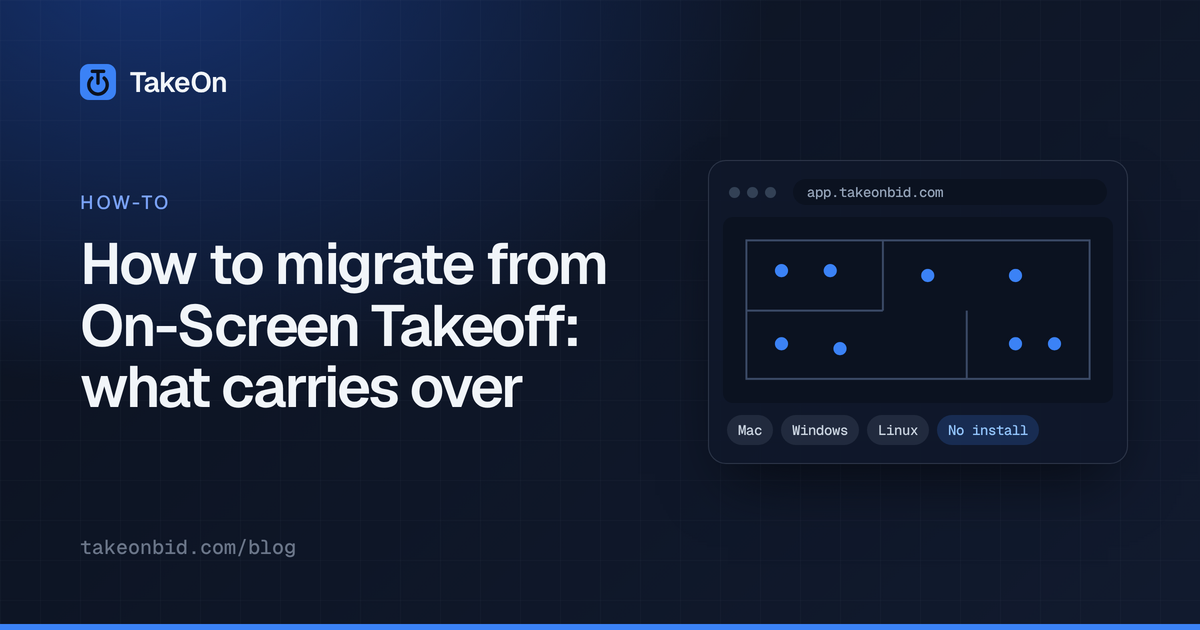
TakeOn needs an internet connection: it runs in a browser and has no offline mode. It is built for a laptop or desktop with a mouse. Touch markup on phones and tablets is not supported yet.
When should you stay on On-Screen Takeoff?
You should stay on On-Screen Takeoff when its depth or your history in it matters more than the platform. OST has been around since 1996, and that shows in its feature set. Stay on OST, or keep it alongside a new tool, if:
- Your shop has years of conditions and projects in OST and no time to rebuild them before the next bid.
- Your pricing runs through Quick Bid and the database behind it, and that workflow is working.
- You depend on a specialty OST tool that a new tool does not match.
- Everyone is on Windows PCs, works alone on a bid, and the upgrade path is simply an upgrade.
Is now the time to migrate from On-Screen Takeoff?
For many shops the trigger is OST’s own upgrade cycle: according to its desktop product lifecycle page, ConstructConnect supports only the latest release, and gives no help, not even activation, for OST 3.97 or older. A retired version or a new PC is a natural point to compare before paying to stay. The side-by-side, with ConstructConnect’s sources, is on the On-Screen Takeoff alternative page.
The low-risk way to migrate is to run one new bid in TakeOn while OST stays installed. Try TakeOn free with your next plan set.
Frequently asked questions
- How do I migrate from On-Screen Takeoff to TakeOn?
- To migrate from On-Screen Takeoff to TakeOn, start your next new bid in TakeOn while OST stays installed: upload the plan PDFs, check each sheet's scale, rebuild the OST conditions you use most as TakeOn templates, then count, measure, price and export. Finish open bids in OST.
- Can TakeOn import On-Screen Takeoff projects or conditions?
- No. TakeOn does not import On-Screen Takeoff project files, conditions or Quick Bid estimates. You upload the plan PDFs to TakeOn and rebuild the conditions you use as TakeOn templates, so most shops finish in-flight bids in OST and start new ones in TakeOn.
- How long does it take to migrate from On-Screen Takeoff to TakeOn?
- Migrating from On-Screen Takeoff to TakeOn takes about one bid: you run your next new bid in TakeOn while On-Screen Takeoff stays installed. The time goes into rebuilding the conditions you use most as TakeOn templates, so it depends on how many conditions a typical job of yours uses.