- revisions
- electrical takeoff
- addenda
- how-to
Addenda and drawing revisions: update a takeoff, don't redo it
In TakeOn, upload an addendum as a new version: the Combined set shows each sheet at its newest issue, takeoff moves forward, and a Diff view colours changes.
The TakeOn Team 6 min read
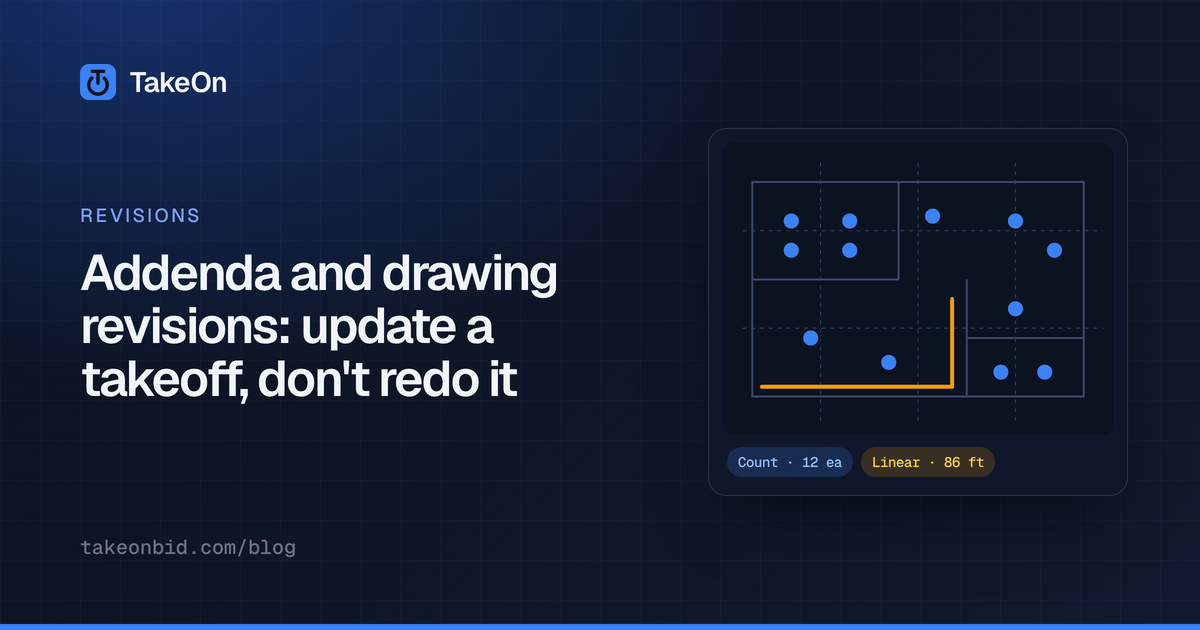
In short: You handle an addendum without starting over by keeping the old set, adding the new one as a version, and moving your takeoff forward sheet by sheet. In TakeOn, each document gets a version name such as Base or Addendum 1 and a place in the issue order. The Combined set then shows every sheet at its newest issue, switching a sheet to the newer issue offers to bring its takeoff forward with its scale, and an overlay Diff view colours what was added and removed. A named checkpoint saved before you start is your restore point, and a baseline to export quantity changes against.
Key takeaways
- An addendum rarely reissues the whole set. The work is finding which sheets changed and what moved on them.
- TakeOn documents can be versioned, and the Combined set pages through every sheet at its newest issue as if it were one document.
- TakeOn takeoff follows a sheet through its versions: bring it forward one sheet at a time, or all reissued sheets at once.
- Uploading a revised set carries sheet names and scales over from the earlier issue.
- The overlay Diff view colours added line work blue and removed line work red.
- A named checkpoint is a restore point, and the export’s Compare to option reports Added, Changed and Removed quantities against it, matched by document and sheet.
What are addenda, bulletins and revised sheets?
An addendum is a change to the bid documents issued before bids are due: revised sheets, new sheets, spec changes, answers to bidder questions. After award, changes usually arrive under other names, such as bulletins, ASIs (architect’s supplemental instructions) or simply revised sheets, and they may lead to a change order. The names and paperwork vary by design team.
On the drawings, a revision is normally marked with a revision cloud around the changed area and a numbered delta that ties to the revision block in the title block. Not every change gets clouded.
Why do addenda wreck a takeoff done on the old set?
An addendum wrecks a takeoff because your counts and runs sit on the old sheets and the bid has to reflect the new ones. Two questions follow every time: which sheets changed, and what quantities moved because of it? A relocated panel changes every homerun that lands on it. The usual ways of answering are slow:
| Method | The catch |
|---|---|
| Flip between the old and new PDF | You are comparing from memory |
| Overlay the two sheets in a PDF tool or on a light table | Shows the change, but the takeoff is still on the old sheet |
| Re-count the reissued sheets | Safe, slow, and you lose what you already did |
How does TakeOn keep track of drawing versions?
TakeOn documents can be versioned: each one gets a name, such as Base or Addendum 1, and a place in the issue order, plus an optional drawing date. The order is yours to set, because addenda are not always uploaded in sequence. When the versions carry drawing dates, the order sets itself oldest first.
The Upload new version button on the project’s Drawings section files an issue already versioned. A sheet that appeared in an earlier issue keeps the name and scale you gave it, so only new sheets have to be read from scratch.
What is the Combined set in TakeOn?
The TakeOn Combined set is one working view of the whole chain of versions: every sheet at its newest issue, with addendum sheets replacing the ones they reissue and new sheets appended. Open it with View as combined set on the Drawings heading.
The Combined set pages like a single document, even when the next sheet comes from a different PDF. Each sheet expands to its own version history, so you can see which issue it is pulling from and switch to an earlier one to compare, with your zoom and pan kept.
The Combined set matches sheets by sheet number. It flags a number used twice in one document, and merges spellings such as E-101 and e101 but asks you to confirm.
How does a takeoff move to the new version of a sheet?
In TakeOn, takeoff follows a sheet through its versions, and you decide when it moves. Switching a sheet that has takeoff to a newer issue prompts you to bring the takeoff forward; the scale goes with it if the new sheet has none. Choose Just view to look without moving anything.
The Combined set also flags every sheet whose takeoff is still sitting on an older version, in a panel that stays at the top of the sheet list. When an addendum reissues many sheets, Correct all brings every one of them forward in one step. The superseded sheet keeps a read-only record of how its takeoff stood before the move. Bringing takeoff forward does not edit it: what the revision changed is still yours to fix.
How do you see what changed between two versions of a sheet?
To see what changed in TakeOn, open the older issue of the sheet, overlay the newer one and turn on the Diff view. The overlay picker lists other versions of the sheet you are on at the top. Diff colours content that is new in the overlaid issue blue, content it no longer has red, and leaves unchanged line work faint.
Diff assumes the two sheets line up. If a sheet was reissued at a different size or position, align it first with the overlay’s offset and scale controls. TakeOn does not align versions automatically.
How do you get the quantity changes from an addendum?
To get quantity changes in TakeOn, save a named checkpoint right after you bring the takeoff forward to the addendum, before you fix anything, then export the Combined set against it. In Export Takeoff, the Compare to dropdown lists your checkpoints. The exported CSV or Excel file adds a Status column, reading Added, Changed or Removed, and a quantity difference column, so a moved or deleted fixture shows up as its own row with its delta. Removed rows are listed after the current ones so the totals still tie out.
Timing matters with versioned sheets: the comparison matches rows by document and sheet. A checkpoint saved before the addendum still has the takeoff on the old document, so against it the reissued sheets’ takeoff exports as Added rather than as Changed rows. Save the comparison checkpoint after the takeoff has moved.
The TakeOn checkpoint is also your way back. Restoring it returns the project’s pages and takeoff to how they stood, and TakeOn saves your current state as a new checkpoint first.
What does addendum day look like in TakeOn?
Here is an addendum worked through on a real plan set, with an example Addendum 1 that moves a troffer, deletes a wall fixture and adds two GFI receptacles:
An addendum-day procedure in TakeOn, as an example:
- Save a checkpoint named for the moment, such as “Before Addendum 2”, as a restore point.
- Use Upload new version, name it Addendum 2, and confirm its order.
- Open View as combined set and filter the list down to the sheets whose newest issue is Addendum 2.
- On each reissued sheet, open the previous version, overlay the new one and turn on Diff.
- Bring the takeoff forward, one sheet at a time or with Correct all.
- Save a second checkpoint, such as “Addendum 2 carried forward”.
- Fix what the Diff showed. If a panel moved, re-route the homeruns that land on it.
- Export the Combined set with Compare to set to the second checkpoint, and review the Added, Changed and Removed rows.
One gap to know about: the Combined set treats a sheet that is missing from an addendum as unchanged. TakeOn has no way to mark a sheet as voided, so track deleted sheets yourself. The revisions section of the features page covers versions, overlays and checkpoints together.
Schedule a demo to see an addendum worked through on a real plan set.
Frequently asked questions
- What is an addendum in construction bidding?
- An addendum is a change to the bid documents issued before bids are due. It can include revised drawing sheets, new sheets, specification changes and answers to bidder questions, and the bid is expected to include it.
- Do I have to redo my takeoff in TakeOn when a sheet is reissued?
- No. When you switch a sheet to a newer version in TakeOn's Combined set, TakeOn offers to bring the takeoff forward to the new sheet, scale included. You then adjust only what the revision changed.
- What happens to the old sheet after TakeOn moves its takeoff forward?
- The old version stays in the project as a record. TakeOn shows a note on it that the takeoff moved, with a View as it was link for a read-only look at the takeoff as it stood before the move.
- Can TakeOn compare two versions of a drawing?
- Yes. TakeOn's overlay picker lists other versions of the sheet you are on first, and the overlay's Diff view colours what was added in blue and what was removed in red, with unchanged line work left faint. The colours and opacity are adjustable.
- Can TakeOn show how quantities changed after an addendum?
- Yes, with a limit. Save a TakeOn checkpoint before the addendum, then in Export Takeoff choose Compare to and pick it: the exported CSV or Excel file gains a Status column (Added, Changed or Removed) and a quantity difference column. Rows are matched by document and sheet, so takeoff brought forward to a new version shows as Removed on the old document and Added on the new one.
- Do addenda have to be uploaded to TakeOn in order?
- No. Each TakeOn document version has its own place in the issue order, which you set, so an addendum uploaded late still sorts where it belongs. If versions carry drawing dates, the order sets itself oldest first.