- routing
- electrical takeoff
- conduit
- how-to
Conduit homeruns on a PDF plan: measure them without tracing
To measure conduit homeruns in TakeOn, mark panels as Landmarks and pick Route to… on a run. It routes to the panel around keep-out zones and totals the length.
The TakeOn Team 6 min read
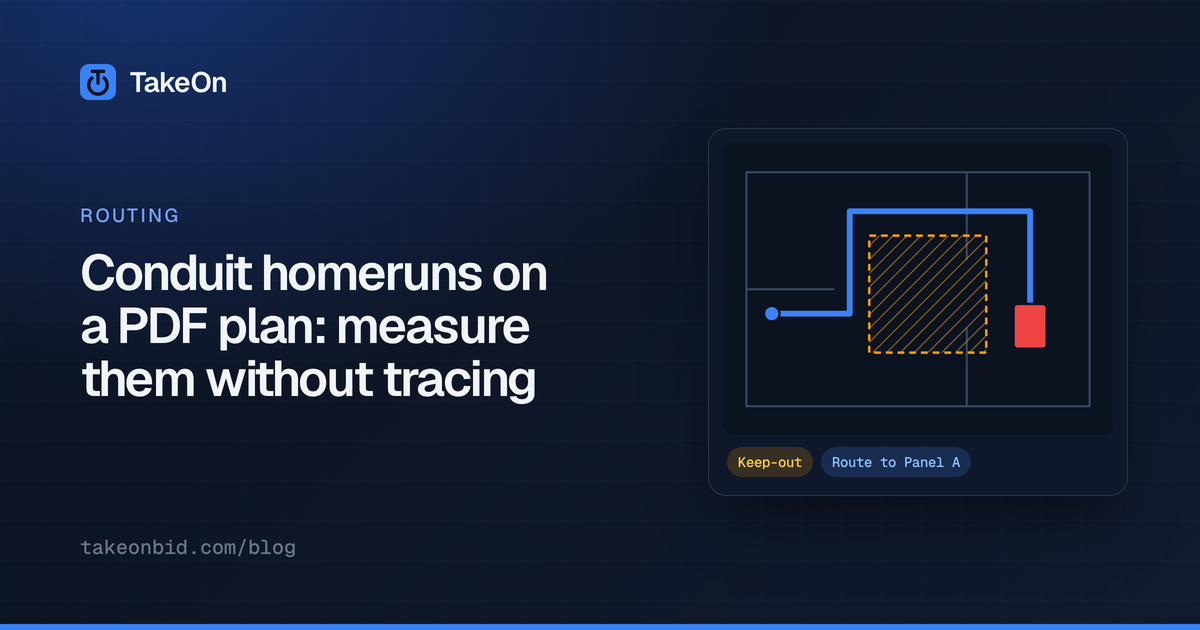
In short: A homerun is the run from a circuit’s first device or junction box back to the panel. Most drawings show it only as an arrow, so the estimator has to choose a path and measure it, and tracing every one point by point is the slow part of an electrical takeoff. In TakeOn you mark your panel template as a Landmark once, then choose Route to… on a Linear run and pick the panel. TakeOn completes the run to the panel, goes around any area you have flagged as a keep-out zone, and puts the routed length in your totals. You still review each route: it is a measuring aid, not a conduit design.
Key takeaways
- A homerun arrow on a drawing gives the panel and circuit, not the route.
- In TakeOn, a Count template flagged Landmark (your panels) becomes a destination a run can route to.
- Route to… is on the Quick Wheel while you draw a Linear, and on the right-click menu at either end of a finished run.
- The route goes around any Boundary flagged Keep-out zone, is right-angled when Ortho is on, and prefers to run alongside conduit already heading the same way.
- With the drawings mapped to the building grid, a TakeOn homerun can reach a panel on another sheet or another floor.
- Route to… measures in plan. Drops, bend limits and conduit fill stay with you.
What is a homerun, and why does measuring homeruns take so long?
A homerun is the part of a branch circuit that runs from the first outlet, device or junction box on the circuit back to the panelboard. On most electrical drawings a homerun is shown as a short arrow marked with the panel and circuit numbers. The arrow tells you where the circuit lands, not how the conduit gets there.
That leaves the path to you: down the corridor, around the stair, into the electrical room. Counting a device is one click. Measuring a homerun is a click at every bend, and a floor of branch circuits has a lot of homeruns.
How do you measure conduit homeruns by hand on a PDF?
The manual way to measure a homerun on a PDF is to set the sheet’s scale, pick a length tool, and click the run point by point from the device to the panel, once per circuit. In most takeoff tools every run is drawn this way. An ortho lock keeps the legs at right angles, closer to a real conduit path.
The manual method goes wrong in predictable places:
- A diagonal “as the crow flies” line is quick and comes up short.
- Two estimators route the same circuit two ways, so lengths vary across a bid.
- A run that crosses a match line is measured in two pieces on two sheets, or the second piece is forgotten.
How does Route to… measure a homerun in TakeOn?
TakeOn’s Route to… finishes a Linear run for you: you start the run at the device, pick the panel from a list, and TakeOn draws the rest.
- Mark the panel template as a Landmark. In the Create or Edit Template dialog, a Count template has a Landmark toggle. Place a count on each panel as usual. Landmarks still count normally, and they get their own list in the status bar.
- Flag where conduit should not go. Draw a Boundary over a stair, shaft or any area you would not run through, and tick Keep-out zone in its properties. The zone is drawn with a diagonal hatch and a “Keep-out” label.
- Start the run. With a Linear template, click the first point at the
device. Press
T, or hold the Quick Wheel key (Qby default) and release over Route to…. On a run that is already drawn, right-click either end and choose Route to… instead. - Pick the panel. The picker lists every Landmark in the plan set. Search or arrow through it; the highlighted row shows the routed length in feet. Recently used Landmarks sort to the top, and a panel the run cannot reach is greyed out with the reason.
- Press Enter. The run completes itself to the panel.
The picker has two options for the end of the run, and both remember your choice for the next homerun. Count one at the panel adds one of a fitting you choose at the panel end. Measure the routed length books the routed footage into a length property on the template.
What path does a routed homerun take?
A TakeOn routed homerun takes the shortest path to the panel that stays out of your keep-out zones, shaped by the Ortho setting.
| Setting | What Route to… draws |
|---|---|
| Ortho on | Right-angle legs with 90° bends, stepping around obstacles |
| Ortho off | The shortest path at any angle |
| Keep-out zone in the way | A path around the zone, with a small clearance |
| Conduit already heading the same way | A path alongside it, when the detour is small |
Where several circuits go back to one panel, TakeOn runs them together the way you would draw them by hand. The shared stretch is drawn on the existing run.
Keep-out zones are how you steer: if a route goes somewhere you would not run conduit, undo it, draw a zone there, and route again.
Can a TakeOn homerun reach a panel on another sheet or another floor?
Yes, a TakeOn homerun can route to a panel on another sheet, and to a panel on another floor, once the drawings are mapped to the building grid. Mapping lines sheets up by floor and area from their column grids; Basic mapping’s Auto set up mapping does it in one pass, and you review the result.
- Sheets covering the same area. A panel placed on one floor plan appears, faded, on the other sheets drawn over the same part of the building, and a run on any of those sheets can route to it.
- Portals and match lines. A run can cross a paired Portal, or a match line at the seam between two areas, and continue on the neighbouring sheet. A run stays on its own trade: a lighting homerun lands on the neighbour’s lighting sheet.
- Another floor. A panel on another floor is listed with its floor, for example ”↓ Level 1”. TakeOn routes to the point directly above or below the panel, drops a through-floor symbol on both sheets, and adds the floor-to-floor height to the run’s length. The height comes from the building’s elevations; until you set them, TakeOn assumes 10 ft and says so in the picker, with a link to set the real height.
Each leg lands on its own sheet’s takeoff, and the template’s group total is the whole run. The routing section of the features page has a screenshot of a routed homerun.
What does Route to… not do?
TakeOn’s Route to… routes in plan, and it is an estimating aid that you review:
- On a single sheet the length is the plan-view length. Drops to devices, stub-ups and the rise into the panel are your allowance.
- It is not a code-compliant conduit design. It does not check bends between pull points, conduit fill or voltage drop.
- There is no preview of the path before you pick, only its length.
- Cross-sheet and cross-floor routing depend on the mapping. A panel on a sheet that does not line up with yours is listed but greyed out, with the reason.
Routed lengths feed the same grouped totals as everything else you measure; see the PDF to bill of materials walkthrough.
Schedule a demo to see homeruns routed on a real plan set.
Frequently asked questions
- What is a Landmark in TakeOn?
- A Landmark in TakeOn is a Count template flagged for things you place once and need to find again, such as electrical panels. Landmarks get their own list in the status bar and are the destinations that Route to… can run a homerun to. The flag does not change how they are counted.
- Can TakeOn route a conduit run I have already drawn?
- Yes. In TakeOn, right-click either end of a finished Linear run and choose Route to…, then pick a Landmark. The run continues from that end to the panel. You do not need to use the Quick Wheel to reach it.
- Do keep-out zones change my takeoff totals in TakeOn?
- No. A TakeOn Boundary flagged Keep-out zone only tells Route to… where not to put conduit. Counts and lengths inside a keep-out zone still total normally.
- Does TakeOn's Route to… add vertical conduit to the length?
- Between floors, yes: when TakeOn routes a homerun to a panel on another floor, it adds the floor-to-floor height to the run's length. The height comes from the building's elevations; if none are set, TakeOn assumes 10 ft and says so in the picker, with a link to set the real height. On a single sheet the routed length is the plan-view length, so drops to devices and to the panel are still your own allowance.
- Can I undo a homerun that TakeOn routed?
- Yes. On a single sheet, Ctrl+Z takes back the whole routed homerun in one press. The routed run is an ordinary TakeOn Linear, so you can also drag its points or delete it like any run you drew by hand.
- Is a homerun routed by TakeOn a conduit design?
- No. TakeOn's Route to… is a measuring aid for estimating. It produces a reasonable path and its length; it does not check bends between pull points, conduit fill or voltage drop, and the estimator reviews every route.