- conduit
- electrical takeoff
- how-to
How to count boxes and fittings along a conduit run
In TakeOn, hold Q while drawing a conduit run and flick to a slice: the point you place also counts a box or fitting, or starts measuring an in-slab stretch.
The TakeOn Team 7 min read
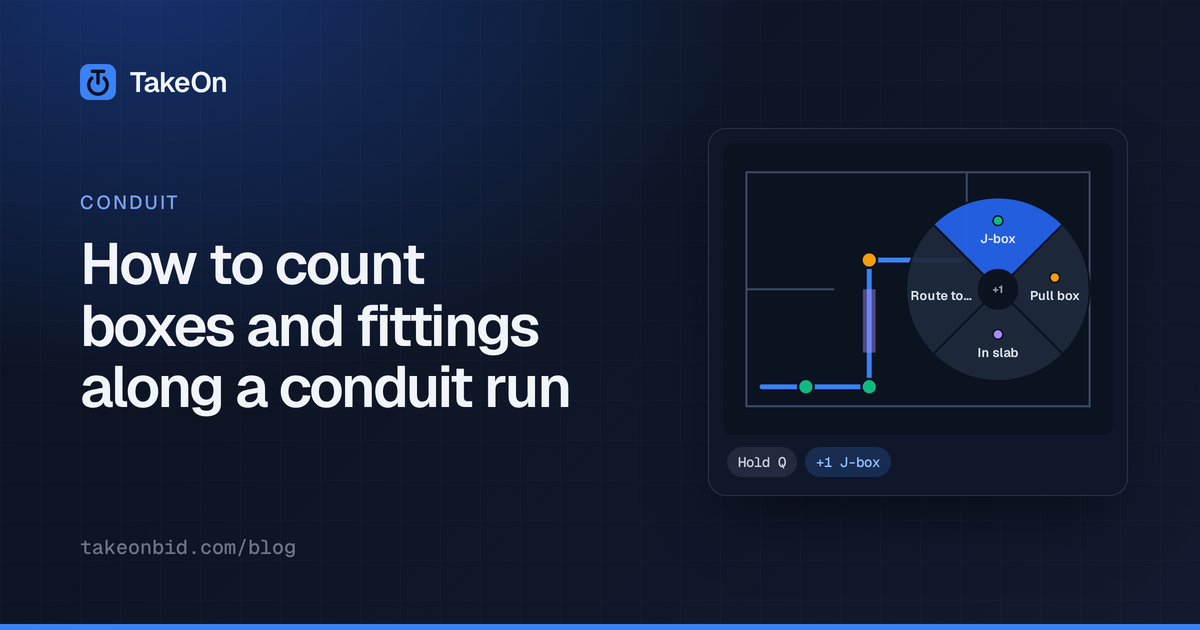
In short: In TakeOn, you count the boxes and fittings along a conduit run while you draw it, using the Quick Wheel. Hold Q where the next point of the run goes, flick toward a slice such as “JB” or “Pull box”, and let go. TakeOn places the point and counts one of that item on the run, with a colored marker so you can see it. A slice can also start and stop measuring a stretch of the run, such as the part that goes in slab. You never switch tools and never leave the line.
Key takeaways
- The Quick Wheel is a radial menu that opens while you draw a Linear run. Its slices are number properties you choose on the conduit’s template.
- A Count (+1) slice places the next point and adds one to that property. The point is the count: delete it and the count drops by one.
- A Measure length slice switches footage counting on and off, so one run can carry its total length and, separately, the part that’s in slab.
- Tallies and measured lengths sum into your takeoff totals and can feed name formats and quantity formulas.
- The same wheel holds Route to…, which finishes the run to a panel for you.
What is the Quick Wheel in TakeOn?
The TakeOn Quick Wheel is a pie-shaped menu that appears under your cursor when you hold a key (Q by default) while drawing a Linear run. Each slice is a number property on the run’s template, such as “JB” (junction box), “Pull box” or “In slab”. You slide the cursor toward a slice and release the key. There is nothing to click and no panel to open.
The wheel exists for things that sit along a run rather than at its ends. Junction boxes, pull boxes, and a run that drops into the slab for part of its path are all attached to the conduit. They’re awkward to take off as separate items because they only make sense in relation to it.
Why count fittings on the run instead of separately?
Counting fittings on the run saves the tool switch, and it keeps the count attached to the conduit it belongs to. Without it, taking off a branch run with boxes along it means one of three things:
- Stop and switch. Finish the run, switch to a count tool, click each box, switch back and pick up the run again. Every switch is a chance to lose your place on a busy sheet.
- Count afterwards. Draw the run, then type “6” into a box-count field from memory or by recounting on the sheet. Nothing on the drawing shows which six.
- Skip it. Leave boxes and fittings to a percentage allowance and hope the job agrees.
With the Quick Wheel, the tally replaces a click you were going to make anyway. You’d place a point at the junction box to turn the corner or run through it. Hold Q there instead, and that same point also counts the box.
How does the Quick Wheel count a box or fitting?
A Count (+1) slice adds a point to the run and adds one to its property in a single motion. In detail:
- With a Linear conduit template active, draw the run as usual.
- At a junction box, hold Q with the cursor on the box. The wheel opens.
- Slide toward JB and release Q. TakeOn places the run’s next point where your cursor was when you pressed Q, with the same ortho and snapping a click would get. It adds one to the run’s JB count and drops a small JB-colored marker on that point.
- Keep drawing. Releasing in the middle of the wheel does nothing, so you can back out.
The wheel works from the very first point, so the box at the start of a run counts too.

The count is stored on the point, and that is the part that matters when you’re checking a takeoff. Delete a tallied point and its count goes down by one. Drag it and nothing changes. Hover a finished run and its tooltip lists each Quick Wheel property with its value, in the property’s color, without selecting anything.
How do you measure part of a run, like the stretch in slab?
A Measure length slice turns footage counting on and off as you draw. Release over “In slab” where the conduit goes into the slab and release over it again where it comes out. That stretch’s length is added to the run’s In slab property. If you leave it on when you finish, it runs to the end of the run.
Each measured stretch shows as a colored highlight along the run with a tick at each end. Select the run to slide a tick along the line, or double-click a tick to remove that stretch. Only one Measure length property is on at a time. Switching to another one closes the first stretch and opens the next at the same spot. The stretches follow the line when you move, add or delete points, and a run cut at a boundary splits its measured length between the pieces.
That keeps a run whole when part of it is installed differently. Take a worked example: a 180 ft branch run with 40 ft in slab. It stays one run of 180 ft, with In slab = 40 ft recorded beside it for your labor to account for. You don’t need two runs on two templates.
How do you set up the Quick Wheel on a template?
The Quick Wheel is set up per template, on number properties, in the template’s Edit Template (or Create Template) dialog:
- Open your conduit’s Linear template.
- Add a number property for each thing you want on the wheel, such as “JB”, “Pull box” or “In slab”.
- Tick Show in quick wheel on each one.
- Pick its mode: Count (+1) to tally items, Measure length to measure stretches.
- Pick a color. It’s used for the slice’s swatch, the markers on the run and the highlight on a measured stretch.
The values are ordinary template properties from there on, so a run’s tallies can appear in the template’s name format and in its quantity formula. Runs that differ only in their tallies stay in one takeoff group, with the tallies summed. You get one row for 3/4” EMT with its total boxes, not a row per run. For more on how templates and properties drive the rollup, see how TakeOn template properties work.
The wheel’s size, its dead zone and the marker size are personal preferences under Settings → Preferences → Quick Wheel. The key is under Settings → Keyboard shortcuts as “Quick Wheel (hold)”.
What else is on the Quick Wheel?
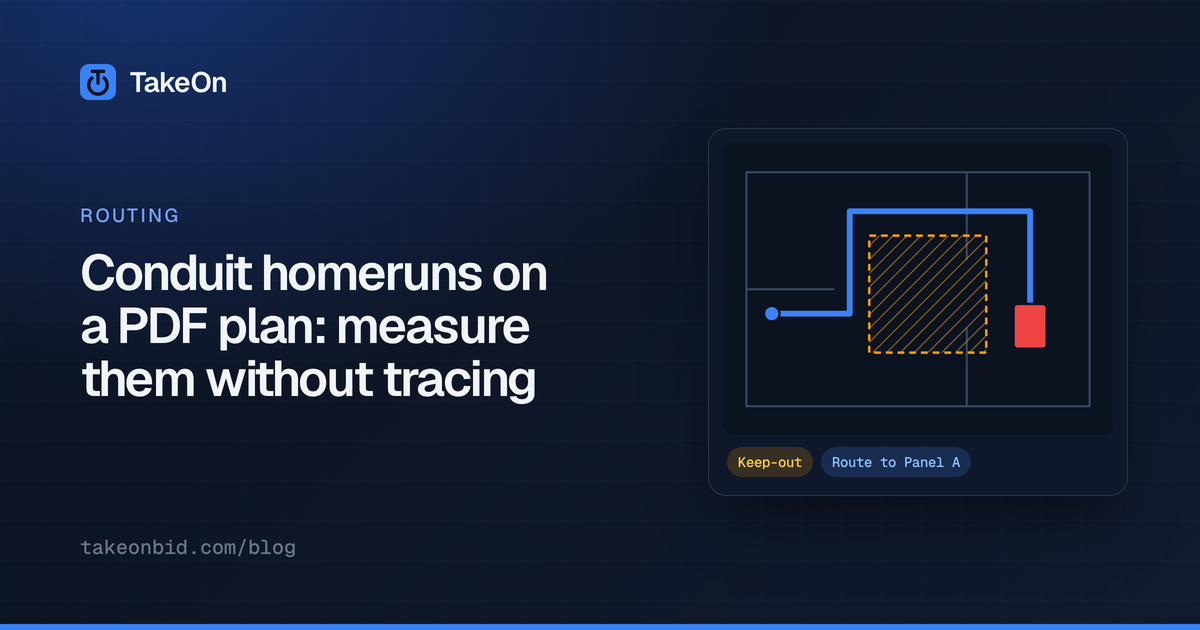
Route to… is on the Quick Wheel too. It finishes the run you’re drawing all the way to a panel you’ve marked as a Landmark, around any keep-out zones. Its picker can add one of a chosen fitting at the panel end and put the routed footage into a Measure length property. The whole homerun goes in without touching the mouse. How that works is its own post: measuring conduit homeruns without tracing them.
What are the Quick Wheel’s limits?
The Quick Wheel works while drawing Linear runs, on number properties of a template. It isn’t available for counts or areas. The slices come from the run’s template, so a wheel is only as useful as the properties you give it. Setting up a conduit template once is the price of admission. A tally also always lands on a point of the run. Counting a box partway along a straight leg adds a point there, which doesn’t change the run’s length.
Try TakeOn free with no credit card needed, and put a Quick Wheel on your conduit template. The rest of the drawing tools are on the features page.
Frequently asked questions
- What is the Quick Wheel in TakeOn?
- The TakeOn Quick Wheel is a radial menu you open by holding Q while drawing a Linear run. Each slice is a number property of the run's template; releasing over one places the next point of the run and counts one of that item, or starts or stops measuring a stretch of the run.
- How do I set up the Quick Wheel in TakeOn?
- Open a Linear template in TakeOn's Edit Template dialog, add a number property such as "JB" for junction boxes, and tick "Show in quick wheel". Choose Count (+1) to tally items or Measure length to measure part of a run, and pick a color for its markers.
- What happens to a Quick Wheel count if I delete the point?
- The count goes down by one. In TakeOn, a Quick Wheel tally is stored on the run's own point, so deleting that point removes exactly the item it counted, and moving the point leaves the count unchanged.
- Do Quick Wheel counts show up in TakeOn's totals?
- Yes. TakeOn adds each run's Quick Wheel counts and measured lengths into its takeoff group's totals, and they can be used in the template's name format and quantity formulas. Runs that differ only in their tallies stay in one group rather than splitting into a row each.
- Can I change the Quick Wheel key in TakeOn?
- Yes. Q is the default. The Quick Wheel is listed as "Quick Wheel (hold)" under Settings → Keyboard shortcuts in TakeOn, where it can be rebound to another key.