- ai
- mcp
- electrical takeoff
- how-to
How to connect ChatGPT to your electrical takeoff
ChatGPT Plus and Pro connect to TakeOn with no developer mode: add https://app.takeonbid.com/api/mcp as a custom MCP server, sign in, and ask about your bid.
The TakeOn Team Updated 5 min read
In short: Yes, you can connect ChatGPT to your electrical takeoff in
TakeOn. On ChatGPT Plus or Pro, open Plugins → Add → Add Custom MCP
Server, paste https://app.takeonbid.com/api/mcp, sign in to TakeOn and
pick the workspaces ChatGPT may use. No developer mode is needed. ChatGPT can
then read your takeoff quantities, priced bid, spec book, schedules and
sheets, and with Allow editing ticked it can do takeoff work too.
Key takeaways
- The TakeOn connector URL is
https://app.takeonbid.com/api/mcp. - It works on ChatGPT Plus and Pro on the web, with no developer mode.
- A connection is read-only unless you tick Allow editing on the consent screen, and it reaches only the workspaces you pick.
- ChatGPT doesn’t show MCP prompts, so you type or paste your request; the example prompts on the TakeOn MCP connector page work as written.
- You can revoke the connection at any time in Settings → Workspace → Connected apps.
What is the TakeOn MCP connector?
The TakeOn MCP connector is a link between your TakeOn workspace and an AI assistant that supports the Model Context Protocol (MCP), the open standard assistants use to reach outside tools and data. ChatGPT is one of those assistants. Once it’s connected, ChatGPT asks TakeOn for the numbers instead of you pasting them into a chat, and it gets the same totals the takeoff panel shows, computed by the same code.
What can ChatGPT read in TakeOn?
ChatGPT connected to TakeOn can read the same six things any connected assistant can:
- Takeoff quantities: every group with its template, property values, count or length, and unit.
- The priced bid: the Bid Summary’s material, labor, burden, overhead, profit, tax and sell price, plus bid options and change orders.
- Spec books: a search over your specification PDFs that returns the matching passages and their page numbers.
- Schedules: the panel, luminaire and equipment schedules you have captured, as tables.
- Sheets: sheet titles, a rendered image of any sheet, and the text on the page with positions.
- Project context: projects, documents, templates, materials and assemblies, page history, checkpoints and comments.
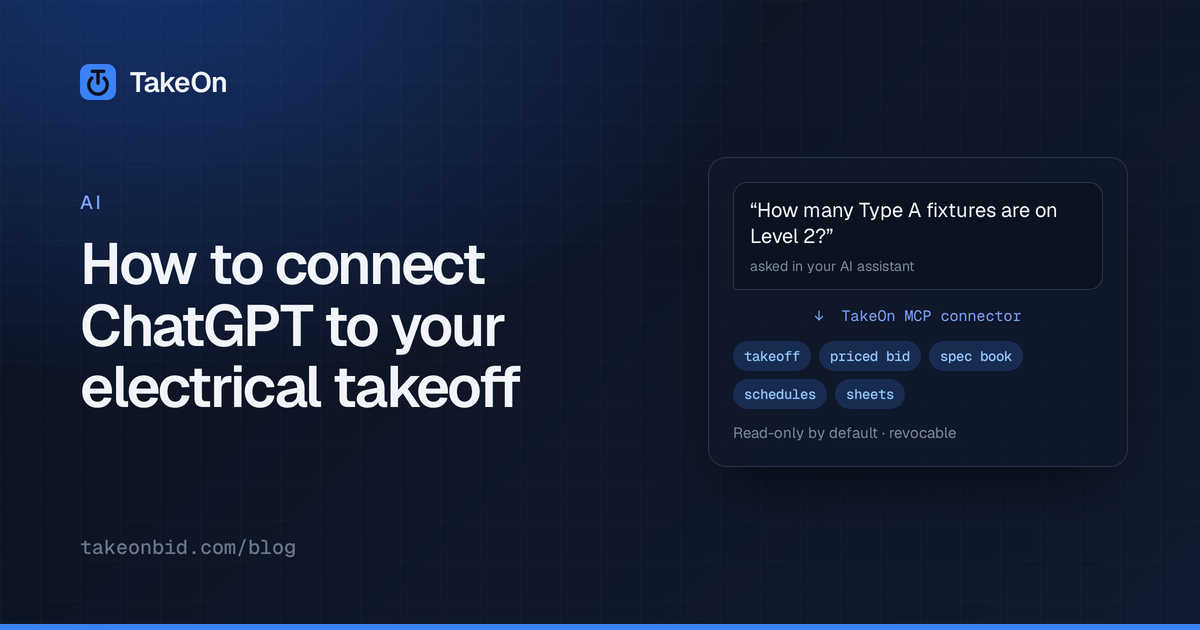
So you can ask “how many Type A fixtures are on Level 2?” or “what does the spec say about conduit for branch circuits?” and get an answer from the job, not from memory.
How do you connect ChatGPT to TakeOn?
Connecting ChatGPT to TakeOn takes four steps:
- In ChatGPT, open Plugins → Add → Add Custom MCP Server. Name it TakeOn
and paste the connector URL,
https://app.takeonbid.com/api/mcp, then save it. - ChatGPT opens a browser window. Sign in to TakeOn the way you normally do.
- On the TakeOn consent screen, pick the workspaces ChatGPT may use. Tick Allow editing only if you want it to make changes.
- Approve. ChatGPT can now use TakeOn’s tools in a conversation.
There is no API key to copy: ChatGPT registers itself with TakeOn during the sign-in. Inside TakeOn, ? → Connect your AI shows the same steps on a ChatGPT tab, with a copy button for the URL.
Which ChatGPT plans work with TakeOn?
The TakeOn connector has been checked end to end (connect, consent, read, edit and revoke) on ChatGPT Plus and Pro on the web, and neither needs developer mode. We haven’t checked the Free plan, the Business and Enterprise plans, or the ChatGPT mobile apps yet, so we don’t claim them. If you try one of those, tell us how it went.
Can ChatGPT edit your takeoff in TakeOn?
ChatGPT can edit your TakeOn takeoff only if you tick Allow editing on the consent screen. Read-only is the default, and a read-only connection isn’t offered the editing tools at all.
With editing allowed, ChatGPT can do real takeoff work: create a project and import a plan set from a download link, set sheet scales and names, read a panel or fixture schedule and place the counts, add or change takeoff markups, carry the takeoff onto an addendum, and price the bid. Every change it makes to the takeoff lands in that page’s history, where you can roll it back, and anyone with the sheet open sees the markup changes arrive live.
Some actions are never available to ChatGPT or any other assistant, with or without editing: deleting a project, a plan or its sheets, changing who a project is shared with, managing workspace members, importing workspace configuration, and restoring a checkpoint. Those stay with a person.
Why don’t TakeOn’s workflow prompts appear in ChatGPT?
ChatGPT doesn’t show the prompts an MCP server offers. In Claude, TakeOn’s workflows, such as “review my takeoff” or “process an addendum”, appear as menu items; in ChatGPT they don’t. You lose less than it sounds:
- Type or paste what you want. The example prompts on the TakeOn MCP connector page are plain text, so they work in ChatGPT exactly as written. Swap in your own project, sheet and panel names.
- ChatGPT still gets the steps. When it connects, TakeOn hands every assistant the steps for each workflow its connection can run, as instructions (a read-only connection gets the takeoff review). On a connection with editing allowed, “process the addendum on the Main Street job” runs in the right order, with a checkpoint saved before the takeoff moves, even without a menu item.
A good first request: “Roll up the whole takeoff by sheet, and flag any sheet that has no scale set.” It’s read-only, and it tells you right away whether ChatGPT is reading the right project.
How do you disconnect ChatGPT from TakeOn?
To disconnect ChatGPT from TakeOn, open Settings → Workspace → Connected apps in TakeOn and revoke the connection. Access ends immediately. A workspace owner sees every connection into their workspace, not only their own, and can revoke any of them. Removing someone from a workspace also ends their connection’s access to it.
Where can you read more?
The TakeOn MCP connector docs cover every supported client, the two permissions, limits and troubleshooting. If you also use Claude, see how to connect Claude to your electrical takeoff. For a whole bid run through an assistant, from plan upload to proposal, read how to run an electrical bid with your own AI assistant.
Try TakeOn free and connect ChatGPT to your next bid.
Frequently asked questions
- Can I connect ChatGPT to TakeOn?
- Yes. ChatGPT Plus and Pro connect to TakeOn through its MCP connector at https://app.takeonbid.com/api/mcp, with no developer mode needed. In ChatGPT, open Plugins, then Add, then Add Custom MCP Server, paste the URL, and sign in to TakeOn.
- Can ChatGPT do construction estimates?
- Not on its own: it can't reliably measure a scaled PDF or know your labor units and prices. Connected to TakeOn as a custom MCP server, with Allow editing ticked when you connect, ChatGPT can drive a real takeoff in your workspace, and you review every change it makes.
- Which ChatGPT plans work with the TakeOn connector?
- The TakeOn MCP connector has been checked end to end on ChatGPT Plus and Pro on the web, with no developer mode. The Free plan, Business and Enterprise plans, and the ChatGPT mobile apps have not been checked yet.
- Can ChatGPT change my takeoff in TakeOn?
- Only if you tick Allow editing on the TakeOn consent screen. A TakeOn connection is read-only by default. With editing allowed, every change ChatGPT makes to the takeoff lands in the page history, where you can roll it back.
- Why don't TakeOn's prompts show up in ChatGPT?
- ChatGPT does not show the prompts an MCP server offers, so TakeOn's built-in workflows don't appear as menu items there. Type or paste a request instead, such as the example prompts on takeonbid.com/mcp/; when it connects, TakeOn also gives ChatGPT the steps for each workflow its connection can run, as instructions.
- How do I disconnect ChatGPT from TakeOn?
- In TakeOn, open Settings, go to Workspace → Connected apps, and revoke the ChatGPT connection. Access ends immediately. Workspace owners can see and revoke every connection into their workspace.