- ai
- mcp
- electrical takeoff
- how-to
How to connect Claude to your electrical takeoff with MCP
TakeOn has an MCP connector: add it to Claude or any MCP client, approve the workspaces it can read, and ask about your takeoff, bid, specs and sheets.
The TakeOn Team 4 min read
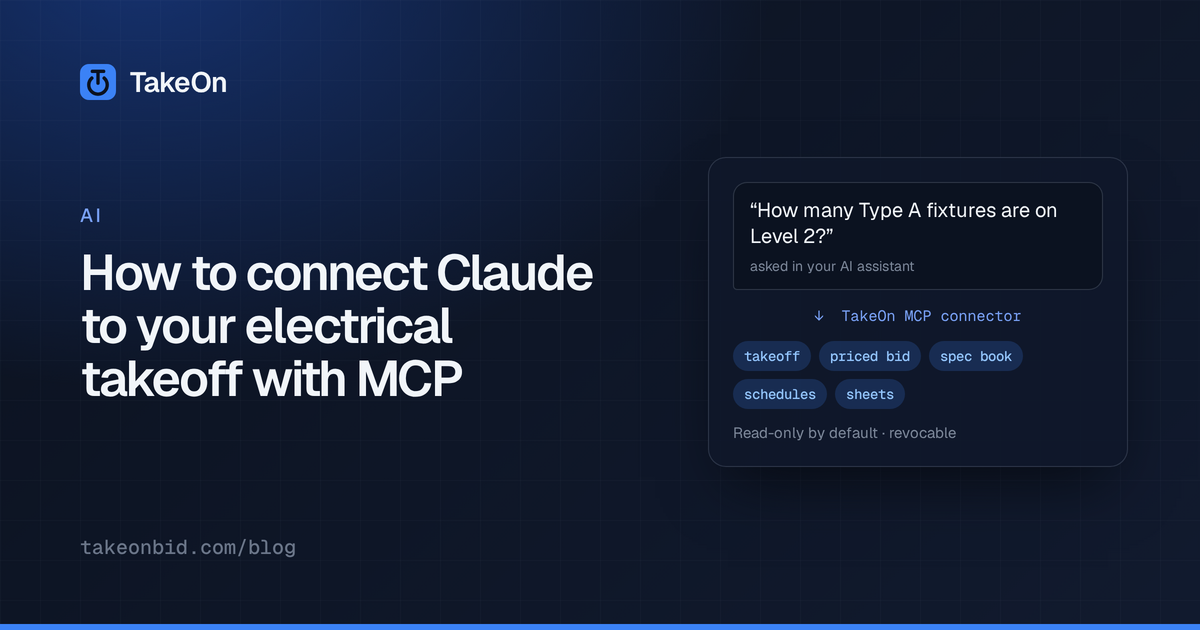
In short: TakeOn has an MCP connector, so you can connect Claude — or any
AI assistant that supports the Model Context Protocol — directly to your
TakeOn workspace. Add https://app.takeonbid.com/api/mcp as a connector, sign
in, and choose which workspaces the assistant can reach. The assistant can then
read your takeoff quantities, your priced bid, your spec book, your schedules
and the sheets themselves. A connection is read-only unless you grant editing,
and you can revoke it at any time.
Key takeaways
- The TakeOn MCP connector URL is
https://app.takeonbid.com/api/mcp. - You bring your own assistant. TakeOn does not sell a chatbot; it gives the assistant you already use accurate data about your job.
- Access is per workspace and chosen by you on a consent screen. A connection can never widen its own access.
- Read-only is the default. Editing is a separate permission, and edits made by an assistant are labelled in the page history.
- Deleting projects, changing sharing, managing members and restoring checkpoints are never available to an assistant.
What is MCP, and why does a takeoff tool have it?
MCP (the Model Context Protocol) is an open standard that lets an AI assistant connect to outside tools and data. A takeoff tool has an MCP connector for the same reason it has an Excel export: your quantities are useful in places other than the takeoff screen.
Without a connector, asking an AI assistant about a bid means pasting numbers into a chat window and hoping you pasted the right ones. With the TakeOn MCP connector, the assistant asks TakeOn directly and gets the same totals the takeoff panel shows — computed by the same code, not re-added by a language model.
What can an AI assistant read in TakeOn?
An assistant connected to TakeOn can read six kinds of information:
- Takeoff quantities — every group, with its template, property values, count or length, and unit.
- The priced bid — the Bid Summary: material, labor, burden, overhead, profit, tax and sell price, plus the add or deduct for each alternate and the change-order rollup.
- Spec books — a search over your specification PDFs that returns the matching passages and their page numbers, and the full text of a page.
- Schedules — the panel, luminaire and one-line schedules you have captured, as tables.
- Sheets — a rendered image of any drawing sheet, and the sheet’s text with positions.
- Project context — projects, documents, pages, templates, page history, checkpoints and comments.
That is enough to ask things like “how many Type A fixtures are on Level 2, and which circuits are they on?”, “what does the spec say about conduit for branch circuits?”, or “what is the sell price if the owner takes Alternate 2?”
How do you connect Claude to TakeOn?
Connecting Claude to TakeOn takes about a minute and four steps:
- In Claude, add a custom connector and paste the TakeOn connector URL:
https://app.takeonbid.com/api/mcp. In Claude Code, the equivalent isclaude mcp add --transport http takeon https://app.takeonbid.com/api/mcp. - Claude opens a browser window. Sign in to TakeOn the way you normally do.
- On the TakeOn consent screen, pick the workspaces the assistant may use and choose whether it may edit. Leave editing off if you only want answers.
- Approve. Claude now lists TakeOn’s tools and can use them in a conversation.
Any other MCP client connects the same way: point it at the connector URL and complete the sign-in.
Can an AI assistant edit a takeoff in TakeOn?
An AI assistant can edit a TakeOn takeoff only when you grant editing on the consent screen. A read-only connection does not just get refused when it tries to write — the editing tools are not offered to it at all.
With editing granted, an assistant can post a comment, create a checkpoint, set a page’s scale or sheet name, save a schedule it transcribed, and add, change or delete takeoff annotations. Every change an assistant makes is labelled as coming from the connector in that page’s history, and the history’s restore works on those changes like any others.
What can’t an AI assistant do in TakeOn?
Some actions are never available to an assistant connected to TakeOn, with or without editing: deleting a project or a plan, changing who a project is shared with, managing workspace members, importing workspace configuration, and restoring a checkpoint or rolling a page back. Those either cannot be undone or affect everyone working on the job, so they stay with a person.
How do you revoke an assistant’s access to TakeOn?
To revoke an assistant’s access to TakeOn, open Settings → Connected apps and revoke the connection. Access ends immediately. A workspace owner sees every connection made into their workspace, not only their own, and can revoke any of them.
Why “bring your own AI” instead of a built-in chatbot?
TakeOn connects to the assistant you already use rather than building another one, for three reasons. First, the assistant you already pay for is the one you already trust and know how to talk to. Second, assistants improve quickly, and a connector means you get the improvement the day your assistant ships it. Third, a connector lets you build workflows nobody designed — a weekly bid-status summary, a spec-versus-takeoff check, a load table from your panel schedules — without waiting for a feature.
TakeOn’s own AI features, such as Find Similar and chat with your spec book, are still there for the jobs that belong inside the takeoff screen — see TakeOn’s AI features and how TakeOn works with your own assistant.
Schedule a demo to see the connector working on a real plan set.
Frequently asked questions
- What is MCP?
- MCP, the Model Context Protocol, is an open standard that lets an AI assistant connect to outside tools and data. An app that offers an MCP connector can be read by any assistant that supports MCP, instead of needing a separate integration for each one.
- Does TakeOn work with Claude?
- Yes. TakeOn has an MCP connector at https://app.takeonbid.com/api/mcp. Add it to Claude as a custom connector, sign in to TakeOn, and approve the workspaces Claude may use.
- Can an AI assistant change my takeoff in TakeOn?
- Only if you allow it. A TakeOn connection is read-only unless you grant editing on the consent screen. With editing granted, every change the assistant makes is labelled in the page history and can be rolled back.
- What can an AI assistant not do in TakeOn?
- An assistant connected to TakeOn cannot delete a project or a plan, change who something is shared with, manage workspace members, or restore a checkpoint. Those actions are not exposed to the connector at all.
- How do I disconnect an AI assistant from TakeOn?
- Open Settings, go to Connected apps, and revoke the connection. Revoking removes that connection's access immediately. Workspace owners can see and revoke every connection in their workspace.
- Does TakeOn charge extra for the MCP connector?
- No. The MCP connector is included. The assistant you connect runs on your own AI subscription; TakeOn supplies the data it asks for.