- ai
- mcp
- estimating
- how-to
How to run an electrical bid with your own AI assistant
Connect your AI assistant to TakeOn and let it start the bid, count from schedules, price it and build the proposal, then check every change in TakeOn.
The TakeOn Team 6 min read
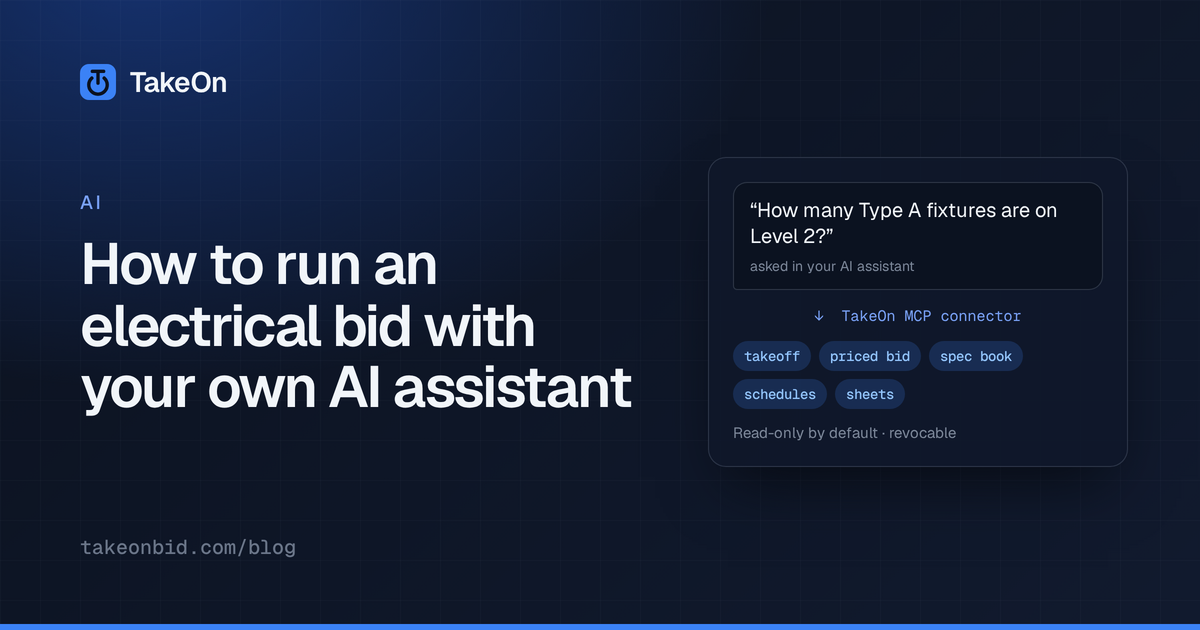
In short: You can run most of an electrical bid by asking your own AI assistant, as long as it is connected to TakeOn with editing allowed. Through TakeOn’s MCP connector the assistant can create the project and import the plan set from a download link. It can read your fixture and panel schedules, place the counts and price the bid. It builds the proposal, and when an addendum lands it carries the takeoff forward and tells you what changed. You open TakeOn to check its work, change what you want, and do the parts that stay yours.
Key takeaways
- Connect once: add TakeOn as a connector in your assistant, sign in, and tick Allow editing on the consent screen. Read-only is the default.
- The assistant works through TakeOn’s own tools, so its counts and prices are the numbers the Takeoffs panel and Bid Summary show.
- Every takeoff change it makes lands in the page history and appears live in any TakeOn tab you have open.
- Plans have to come from a direct PDF download link for now. Email attachments and Drive or Box share links aren’t supported yet.
- Reviewing the routes and the drawing overlay, and final sign-off, stay in the TakeOn app, with you.
What does it mean to run a bid with your AI assistant?
Running a bid with your AI assistant means asking it, in plain language, to do the steps you would otherwise click through, while TakeOn does the measuring and the math. The assistant is the one you already use. TakeOn connects to it through MCP (the Model Context Protocol), an open standard for letting an assistant use outside tools. You type “start this bid and pull in the drawings”. The assistant calls TakeOn’s tools to create the project and import the set, and it reports back.
The assistant doesn’t re-add your takeoff in its head. When it asks for a quantity or a sell price, TakeOn computes it with the same code the app uses, and the assistant passes it on.
How do you set it up?
Setting it up takes one connection, made once:
- In your assistant, add a custom connector with the URL
https://app.takeonbid.com/api/mcp. - Sign in to TakeOn when the browser window opens.
- On the consent screen, pick the workspaces the assistant may use and tick Allow editing. Without it the assistant can read and answer questions but can’t change anything.
- Approve.
The step-by-step version, including Claude Code, is in how to connect Claude to your takeoff with MCP.
How does the assistant start a bid?
The assistant starts a bid by creating a project and importing the plan set from a link. Paste the bid invitation, or just the drawings link, and ask it to set the job up. It creates the project in your workspace, hands TakeOn the link, and waits while the server downloads and processes the PDF. When the set is ready, every sheet comes in numbered, named and scaled from its title block, the same as an upload in the app. The assistant can then list the sheets and fix any name or scale TakeOn couldn’t read.
The link must be a direct download of one PDF. A Dropbox link works if it
ends in ?dl=1. A Google Drive or Box share page, a plan room behind a login,
and a file attached to an email don’t work yet. For those, upload the set in
TakeOn yourself and let the assistant take it from there.
How does the assistant do the takeoff?
The assistant does the takeoff by asking TakeOn to read schedules and find symbols, then placing the counts:
- Fixture schedules. It reads the luminaire schedule into a table and turns each fixture type into a takeoff group. Then it finds each type’s mark (the L1 or A2 tag beside the symbol) on the sheets you name and stamps the counts. It’s the same Create Takeoff flow described in how to turn a panel schedule into a takeoff, driven by a request instead of clicks.
- Panel schedules. It reads each panel schedule on a sheet into an editable table, with circuits, breakers and loads.
- Repeated symbols. Point it at one example of a device and it searches up to 10 sheets at a time for matches, then places the ones it keeps. This is the server version of Find Similar.
The assistant can also draw, move or delete individual counts, runs and areas, and route homeruns. It uses the same router as Route to… in the app, which finds a path to the panel around keep-out zones and across match lines, for one run or a batch of devices to their panels. It shows you the lengths first, saves a checkpoint before it draws a batch, and can take a whole batch back out in one step. How runs carry across match lines is covered in taking off a building split across match lines.
How does the assistant price the bid and build the proposal?
The assistant prices the bid by reading TakeOn’s Bid Summary, so the sell price it quotes is the same waterfall you’d see on screen: material, labor, burden, overhead, profit and tax. It can set your labor rate and markups for the job and fill in the proposal’s scope, inclusions and exclusions. Then it generates the branded proposal PDF, which comes back into your conversation.
Whether your assistant can then save that PDF to a folder or attach it to an email depends on the assistant and the other tools you’ve connected to it. The proposal is always there to download from the project in TakeOn.
How does the assistant handle an addendum?
The assistant handles an addendum the way you would, in five steps:
- It imports the addendum from its link and marks it as the newer issue of the set.
- It finds the sheets the addendum reissues.
- It saves a checkpoint, so there’s a “before” to compare against.
- It moves the takeoff from the old sheets onto the new ones.
- It compares against the checkpoint and reports each takeoff line as Added, Changed or Removed, with the quantity change.
If you decide some of the new work is a change order, the assistant can set one up, tag the work to it and read back what it adds to the contract. To see the drawing changes themselves, open the sheet in TakeOn and turn on the Diff overlay: blue is new, red is gone.
What do you still do in TakeOn?
You still review the work and make the calls. Every takeoff change the assistant makes shows up live in any TakeOn tab you have open and lands in that page’s history, where you can roll it back. You review the routed homeruns, check the overlay on an addendum, and adjust anything you’d have done differently. You also decide what goes out the door.
Some things are never available to an assistant, with or without editing. It can’t delete a project or a plan set, change who a project is shared with, manage your team, or restore a checkpoint. You can revoke its access at any time in Settings → Workspace → Connected apps.
What are the limits today?
The connector is honest about its limits, and so are we:
- Plans by link only. As above, there’s no email-attachment or share-link import yet.
- Hourly limits. To keep a runaway assistant in check, a connection can make 500 changes and 20 server jobs (imports, schedule reads, symbol searches) an hour. A big set can take the assistant more than one sitting.
- You still check the drawings. The assistant sees the sheets as images and text. Reading revision clouds and judging scope is still your job.
If you’d rather see it on your own drawings, try TakeOn free and connect your assistant from Settings → Workspace → Connected apps.
Frequently asked questions
- Can an AI assistant do an electrical takeoff in TakeOn?
- Yes, if you grant it editing when you connect. Through TakeOn's MCP connector an assistant can read a panel or fixture schedule, place the counts on the drawings, find repeats of a symbol, and draw or change takeoff annotations. Every change lands in TakeOn's page history, where you can review it and roll it back.
- Can my AI assistant import plans from an email into TakeOn?
- Only from a direct download link to a PDF, such as a Dropbox link ending in ?dl=1. TakeOn can't yet take a file attached to an email, a Google Drive or Box share link, or a plan room that needs a login; upload those sets in TakeOn instead.
- Which AI assistants work with TakeOn?
- TakeOn's connector follows the open Model Context Protocol (MCP), so it is built for any assistant that supports remote MCP connectors with sign-in. It has been tested end to end with Claude and Claude Code.
- Can an AI assistant route homeruns in TakeOn?
- Yes, if you grant it editing. The assistant routes homeruns with the same router as Route to… in the TakeOn app, around keep-out zones and across match lines, one run at a time or a batch of devices to their panels. It shows the lengths first, saves a checkpoint before it draws a batch, and can remove a whole batch in one step.
- Does TakeOn charge extra to use an AI assistant?
- No. The MCP connector is included with TakeOn. The assistant runs on your own AI subscription, and TakeOn supplies the data and does the work the assistant asks for.