- schedules
- electrical takeoff
- how-to
Panel schedule to takeoff: turn PDF schedules into counts
To turn a panel or luminaire schedule on a PDF into a takeoff, capture the table as data, map its columns to a count template, and review the counts it creates.
The TakeOn Team 6 min read
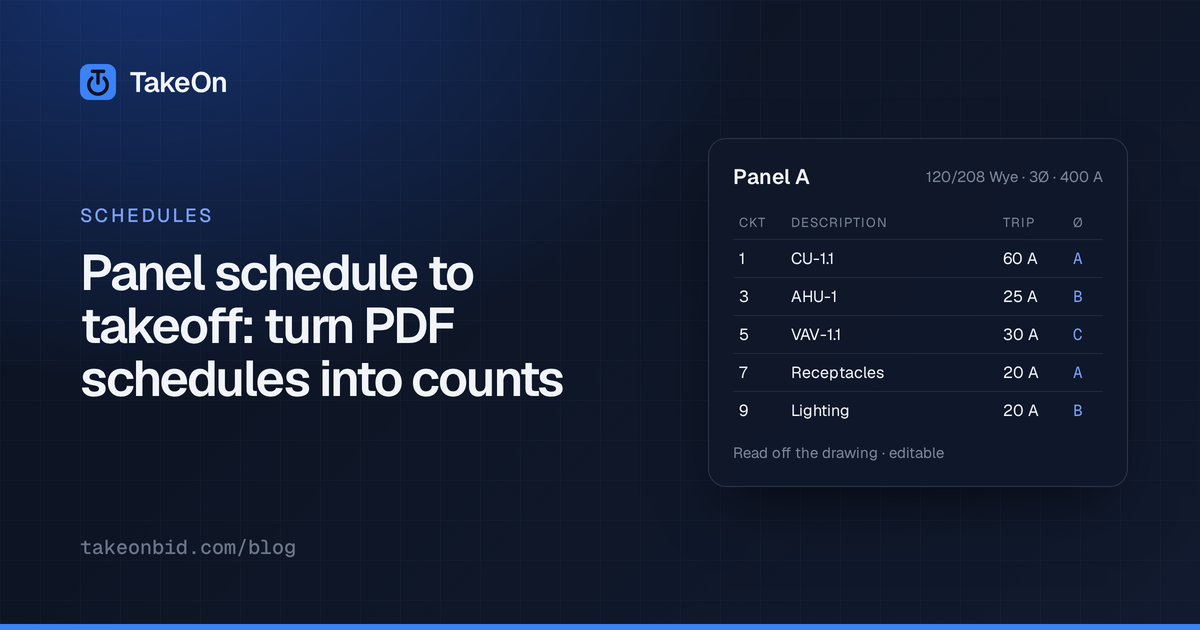
In short: To turn a panel schedule, luminaire schedule or one-line diagram on a PDF drawing into a takeoff, you capture the table as data, map its columns to a takeoff template, and create one takeoff group per row. In TakeOn you draw a box around the schedule, or scan whole sheets for every schedule on them, and AI reads each one into an editable grid. Create Groups and Create Takeoff then turn the rows into counts. You check the read against the drawing and review every count before it lands.
Key takeaways
- TakeOn captures a schedule two ways: Select a region for one table, or Add → From pages… to scan whole sheets and confirm what was found before anything is transcribed.
- A captured panel schedule comes back two-sided, odd circuits left and even right, with an editable header block.
- Dropdowns above the column headers map each column to a property on a Count template. Create Groups makes one takeoff group per row.
- Create Takeoff searches the sheets you pick for each row’s type mark. Nothing is stamped until you accept.
- A one-line diagram becomes a table of panels, cross-checked against your panel schedules, with feeders taken off as linear runs.
What are panel schedules, luminaire schedules and one-line diagrams?
A panel schedule is the table for one panelboard: each branch circuit with its circuit number, breaker trip and poles, load description and load, under a header giving the panel’s voltage, phases, wires, mains and A.I.C. rating. A luminaire schedule lists every fixture type on the job by type mark, with its description, catalog number, lamping, voltage and mounting. A one-line diagram (also called a single-line or riser) shows how power is distributed: the service, switchboards, transformers and panels, and the feeders between them. All three feed an electrical takeoff.
Why do estimators re-type schedules by hand?
Estimators re-type schedules because a schedule on a PDF is linework and text, or a scan, and not a spreadsheet. Copying a table out of a PDF tends to scramble the columns, so the fixture types get typed into the takeoff tool or into Excel, once per job and again when an addendum reissues the sheet. That is where transposed type marks and missed rows come from.
How do you capture a schedule from a PDF in TakeOn?
Capturing a schedule in TakeOn takes four steps:
- Open Schedules from the plan’s ⋮ menu and click Add.
- Choose Select a region to draw a box around one table, or From pages… to pick sheets and have each one read once to find every schedule on it, each with its type already set.
- With From pages…, review the list of what was found and untick anything you don’t want. Nothing is transcribed until you confirm.
- TakeOn reads each schedule into an editable grid: title, columns and rows, plus the notes printed around the table. A panel schedule drawn as real PDF text is usually read straight from the text in seconds, and kept only when its circuit loads add up to the panel’s printed totals; anything else is read by AI. Check it against the drawing: Source jumps back to the captured region, and any cell can be corrected.
What does a captured panel schedule look like in TakeOn?
A captured panel schedule in TakeOn looks like a panel schedule: odd circuits down the left, even circuits down the right, paired on the same line. A 3-pole breaker on 1, 3 and 5 shows as one breaker across three lines, and each circuit keeps its own per-phase load.
The panel’s header block is read off the drawing and editable above the circuits: location, supply from, mounting, enclosure, volts, phases, wires, A.I.C., and mains type and rating. Rows whose circuit number can’t be placed, such as a tandem like “1A”, are called out above the panel, not dropped.
How do you turn a luminaire schedule into takeoff counts?
You turn a luminaire schedule into takeoff counts in TakeOn by mapping its columns to a Count template. The mapping is a row of dropdowns directly above the column headers. Pick the Count template, pick the property each column fills, and choose which column to search the drawings for, usually the type mark. The mapping saves itself and is kept per schedule type for the workspace, so the next luminaire schedule starts from it. New to templates? Read how template properties work.
Then there are two buttons:
- Create Groups adds one takeoff group per row, starting at 0. The groups appear on the From Schedule tab of the Takeoffs panel. Click one and count it by hand.
- Create Takeoff creates the groups, then asks which sheets to search. It
finds each row’s type mark on those sheets as a whole tag, so
L1matchesL1and(L1)but notL10, and shows a per-symbol summary with a per-page breakdown. You exclude any symbol or page that looks wrong, then click Accept All.
Create Takeoff looks for the text tag, not the drawn shape. A fixture with no type mark beside it is not found; count those with Find Similar. A one-character mark such as “A” is flagged “too generic — place manually”, because it would match far too much text. Scanned sheets are read with OCR, at around 30 seconds per page. Afterwards the schedule gains a read-only Counted column.
How do you take off a one-line diagram?
You take off a one-line diagram in TakeOn by drawing a box around it, the same way as a table. TakeOn inventories the diagram and returns a row for each panel and piece of gear: name, equipment, status, amps, main type, voltage, phase/wire and a best-effort “fed from”. “Fed from” is traced from the feeder lines, so it is the column to check first.
TakeOn then cross-checks the one-line against the panel schedules you have captured: any row naming a captured panel is compared with that panel’s header block, and a disagreement is highlighted, explained and linked to the panel. “208Y/120V” and “120/208 Wye” count as agreeing. Where the one-line leaves a rating blank and the panel schedule has it, the cell is filled in and tinted blue, and hovering it names the source panel. Disagreements are never overwritten.
For feeders, a one-line has a Linear mapping row beside the Count mapping row. Pick a linear template, map the columns, and Create Feeder Groups makes one linear takeoff group per feeder row. You draw each feeder’s run, and its measured length sums into a read-only Length (ft) column.
What if the schedule’s wording doesn’t match your template’s choices?
When a schedule’s text varies but should land on one fixed choice, use Map values in TakeOn. One drawing says “EMT”, the next “e.m.t.”, a third “Elec Metallic Tubing”. Map values appears on any column mapped to a property with a fixed list of choices: auto-match by spelling, map by hand, or click the star for an AI pass that matches by meaning. You confirm every suggestion, and the answers are kept for the workspace, so the next project starts with them.
How do you save and export a captured schedule?
A captured schedule in TakeOn saves itself and exports to three formats. Every
edit auto-saves; the footer shows Saving… then All changes saved.
Export offers .csv, .xlsx or print, which your browser can save as a
PDF, and it includes the Counted and Length (ft) columns.
What still needs an estimator’s eye?
Every step of schedule capture in TakeOn is reviewed by a person. An AI read of a dense table can get a cell wrong, so compare the grid with the sheet before you build on it. Create Takeoff proposes counts and you accept them. The cross-check flags a conflict between two drawings; which one is right is your call.
Schedule a demo and we’ll capture a panel schedule and a luminaire schedule from a real plan set.
Frequently asked questions
- Can TakeOn read a schedule from a scanned drawing?
- Yes. TakeOn reads a schedule from a rendered image of the region you select, so it does not depend on the PDF having selectable text. A faint or skewed scan is harder to read than a clean vector sheet, so check the captured table against the drawing.
- What if a luminaire schedule continues onto a second sheet?
- In TakeOn, right-click the schedule and choose Append from drawing, then draw a box around the continuation. The new rows are added to the same schedule, and the schedule keeps a link to every sheet it was read from.
- What happens to my takeoff groups if I re-capture a schedule in TakeOn?
- Re-select region replaces the schedule's rows with a fresh read and clears the takeoff groups made from it, because those groups are tied to row numbers. TakeOn warns you first and says how many rows are being replaced. The column mapping is kept, so the groups can be created again in one click.
- Which kinds of schedule does TakeOn recognise?
- TakeOn classifies each capture as a panel schedule, a luminaire schedule, a one-line diagram, or other. The type is set when the schedule is read and you can change it in the editor. Any other table, such as a conductor or equipment schedule, is captured as a plain editable grid.
- Can an AI assistant read the schedules I capture in TakeOn?
- Yes. An assistant connected through the TakeOn MCP connector can read your captured panel, luminaire and one-line schedules as tables. With editing granted, it can also save a schedule it transcribed into your project, and that change can be reversed like any other edit.