- how-to
- ai
- electrical takeoff
How to count symbols on a PDF plan automatically
To count symbols on a PDF plan automatically, box one example and let image matching find the rest. TakeOn's Find Similar proposes matches; you accept them.
The TakeOn Team 6 min read
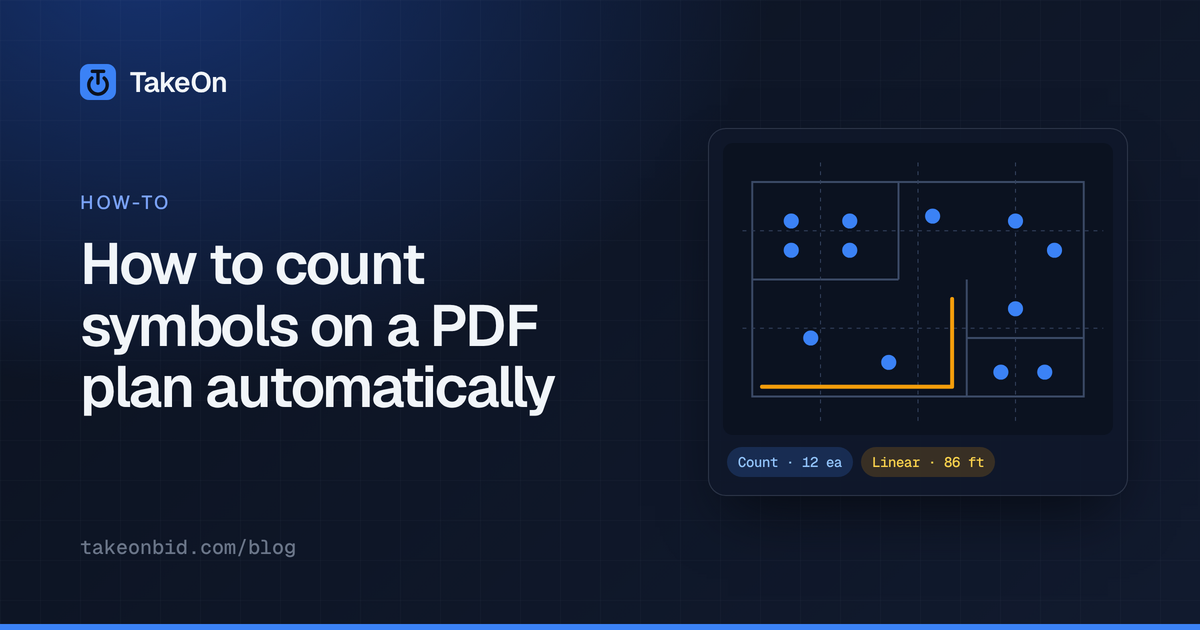
In short: To count symbols on a PDF plan automatically, you show the software one example of the symbol and it finds every place the sheet repeats it. In TakeOn this is Find Similar: pick a Count template, click the wand or press F, and drag a tight box around one luminaire, receptacle or device. Ghost markers appear on every match on that sheet. You set the Match sensitivity slider, dismiss anything wrong, and click Accept all. Nothing is counted until you accept it.
Key takeaways
- Find Similar is image matching against the rendered sheet. It is not a language model estimating a total; every count is a marker at a location you can check.
- One example is enough. Draw the box tight: extra linework inside it lowers every match’s score.
- The Match sensitivity slider (Fewer ↔ More) sets how many of the strongest matches are shown, strongest first.
- Find Similar matches at the four 90° rotations by default, and can search finer angles for tilted symbols.
- Accepted matches are ordinary count annotations carrying the template’s property values, so they group into the BOM like hand-placed counts.
Why is counting symbols by hand slow?
Counting symbols by hand is slow because the time grows with every symbol on the sheet. Most takeoff tools count symbols one click at a time: pick a count tool, click each luminaire, move to the next type. It is accurate, because a person looks at every symbol. It also fails in predictable ways: a fixture missed in a dense ceiling grid, a row counted twice after a phone call, a similar-looking device clicked under the wrong type.
What is automatic symbol counting?
Automatic symbol counting is software finding every instance of a symbol on a sheet from one example you give it. The usual technique is template matching: the cropped example is compared against every position on the rendered sheet, and each position gets a similarity score. It suits construction drawings because a CAD-produced PDF draws the same symbol the same way everywhere on a sheet.
TakeOn’s Find Similar works this way. It runs normalized cross-correlation template matching, using the OpenCV computer-vision library, against the rendered page. It is not a language model reading the plan and guessing a quantity. Each result is a specific location with a confidence score, shown on the drawing for you to keep or reject.
How do you count symbols with Find Similar in TakeOn?
Counting symbols with Find Similar in TakeOn takes six steps:
- Pick a Count template in the right panel and set its property values, such as the fixture type. If you have not built one yet, see how template properties work.
- Click the wand icon in the template’s form, or press F. The shortcut works whenever a Count template’s form is open, including when you have selected an existing count marker, and you can rebind it under Settings → Keyboard shortcuts.
- Drag a tight rectangle around one example of the symbol on the sheet.
- Ghost markers appear over every match, and the panel shows how many matches are selected. The first search in a session takes a few seconds longer while the matching engine loads.
- Review. The matches list shows a small preview of each match with its confidence; click a row to pan and zoom to it, and use the up and down arrow keys to walk the list. Click a ghost on the drawing to dismiss it and click again to restore it, or drag a rectangle to toggle several at once.
- Click Accept all to stamp the remaining matches. Reselect lets you draw a different box, and Cancel leaves the takeoff untouched.
What does the Match sensitivity slider do?
The Match sensitivity slider in TakeOn’s Find Similar sets how many matches are shown and stamped, strongest first. Each step toward More adds the next-strongest candidate, and each step toward Fewer drops the weakest. An “N of M” readout shows how many of the found candidates are in view. The slider starts at a conservative setting, and moving it does not re-run the search.
Because the slider picks a count, you can use what you already know. As an example: if the sheet should carry 32 of a fixture type, dial to 32 and look hardest at the weakest few, then push a little further to see what sits just below the line.
Does Find Similar find rotated symbols?
Yes. Find Similar in TakeOn matches at the four 90° rotations by default, so a symbol placed sideways or upside-down is caught with the upright ones. For symbols set at an angle, the Search angles slider widens the search to 8, 16 or 24 angles, down to every 15°.
Two limits are worth knowing. Find Similar does not detect mirrored symbols, and the match depends on size: a symbol drawn larger or smaller than your example, such as on an enlarged plan, needs its own example. Matching also ignores colour.
What makes symbol matching work well or badly?
Find Similar in TakeOn matches best from a tight box around a clean, vector-drawn symbol, and worst on noisy scans and crowded linework.
| Factor | Effect | What to do |
|---|---|---|
| A loose box | Extra linework inside the box lowers the score of every true match | Box the symbol tightly, on an instance with nothing crossing it |
| A plain symbol | A box that is mostly blank is rejected as having no distinguishing features, and a box that is too small or too large is refused | Include the whole symbol, and only one symbol |
| Vector sheets | The same symbol renders identically across the sheet, which is the best case | Start near the default sensitivity |
| Scanned sheets | As a general rule, scan noise and skew make each instance slightly different, so true matches score lower | Move toward More and review the weaker matches closely |
| Tags, wall lines or homeruns over a symbol | Generally, an instance with other linework across it scores lower and may fall below the line | Check crowded areas by eye and add any misses by hand |
| Look-alike symbols | Generally, two devices that differ by a small mark score close to each other | Include the distinguishing mark in the box and review the weakest matches |
Why do the counts land as annotations and not just a number?
Counts from Find Similar land as annotations in TakeOn so that each one can be checked and carries data. Every accepted match becomes an ordinary count marker, stamped with the active template’s style and property values. From there it behaves like a count you clicked yourself: it groups with other counts that share the template and property values, rolls into the totals, and exports with them. The walkthrough from PDF to bill of materials shows that grouping end to end.
When should you still count symbols by hand?
Count symbols by hand when setting up a match would take longer than clicking. That usually means:
- A handful of instances on a sheet.
- A poor scan or a hand-drawn sheet, where no two instances look alike.
- Symbols buried under other linework.
- Fixture types that share one graphic and differ only by their type mark. For those, the text is the better handle: TakeOn’s Create Takeoff searches the sheets for each type mark from a captured luminaire schedule, covered in turning a panel or luminaire schedule into a takeoff.
Mixing methods is normal. Run Find Similar for the common fixtures, then pick up the oddities by hand under the same template. More on Find Similar and TakeOn’s other AI features.
Schedule a demo and we’ll run Find Similar on a lighting plan from a real set.
Frequently asked questions
- Does Find Similar count symbols on every sheet at once?
- No. TakeOn's Find Similar searches the sheet you have open, so you run it once per sheet. After you accept a set, the example you boxed is saved in your browser for that takeoff group, and the next run for the same group starts from the saved selection instead of asking you to draw the box again.
- Can I undo a Find Similar count in TakeOn?
- Yes. Accept all stamps every accepted match as a single batch, so one undo removes the whole set. Each stamped marker is also an ordinary count annotation, so you can delete or move a single one later.
- Will Find Similar double-count symbols I have already counted?
- No. TakeOn's Find Similar skips matches that sit on top of counts you have already placed with the same template. A Skip near existing slider in the review panel controls how close is too close, and setting it to zero turns the filter off.
- Can Find Similar measure conduit runs or areas?
- No. Find Similar in TakeOn works with Count templates only, because it finds repeated symbols at a point. The wand button does not appear on linear or area templates; those are measured with the linear and area tools.
- Can I change how Find Similar's ghost markers look?
- Yes. The Find Similar review panel in TakeOn has a Ghost appearance section for the preview markers' size, fill opacity, border thickness, shape and colours. The settings are remembered in your browser and do not change how the accepted count markers look.