- bidding
- estimating
- how-to
How to send bid invites before your takeoff is done
Pick the scopes your takeoff calls for, send each sub and vendor an invite PDF in the first days of the bid, then level their quotes onto your Bid Summary.
The TakeOn Team 8 min read
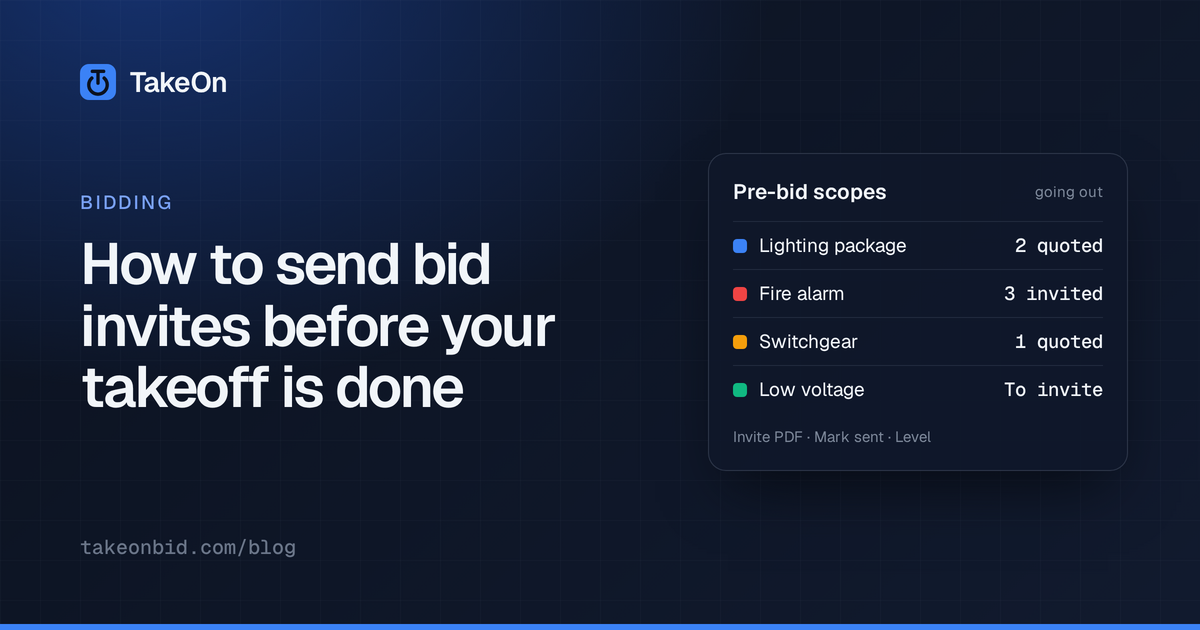
In short: To send bid invites before your takeoff is done, decide which scopes go out for pricing, send each sub and vendor an invitation that states the scope, the quote deadline and what to include, then record and level the quotes as they come back. In TakeOn, the project’s Pre-bid page does this. It suggests scopes from the takeoff you have so far, builds the invitation PDF for you to email, and puts the quote you select onto the Bid Summary.
Key takeaways
- Send invites in the first days of the bid. Sub and vendor quotes take the longest to come back, so they shouldn’t wait for the takeoff to finish.
- Each invite has to say the right things: the scope, the deadline, the addenda that affect that scope, and any manufacturer the owner requires.
- Read the spec book’s bid terms early. Bonds, prevailing wage and liquidated damages change the number, not just the invites.
- Level quotes before you compare them. The lowest total is not the lowest price if it leaves out part of the scope.
- TakeOn doesn’t send email. It builds the PDFs, and you send them yourself.
What is TakeOn’s Pre-bid page?
TakeOn’s Pre-bid page is a project’s record of what goes out for pricing: the bid’s dates, the scopes that go to subs and vendors, who is invited to each, what the bid documents say, and the quotes that come back. Open it from the menu under Bidding → Pre-bid. It has five tabs: Scopes, Bid info, Documents, Fixture count and Defaults.
Without it, this information sits in the estimator’s head and inbox: who was asked for a lighting price, which deadline the fire alarm sub was given, and whether the gear quote covers Addendum 2.
How do you decide which scopes to send out?
You decide which scopes to send out by starting from the work your takeoff already shows. In TakeOn, Suggest from takeoff on the Scopes tab lists the scopes the takeoff calls for and adds the ones that aren’t on the list yet. A lighting package is suggested once you have counted light fixtures, for example. It never changes a scope that already exists.
Each TakeOn scope has:
| Field | What it holds |
|---|---|
| Kind | Subcontract, vendor quote, material quote, or self-perform |
| Status | To invite, invited, quoted, self-perform, or not needed |
| Quote due | Its own deadline, otherwise the project’s quotes-due date, otherwise a set number of hours before the bid is due (set on Defaults) |
| Invite bullets | One line each, printed on that scope’s invite |
The suggestion works from the scope each takeoff template belongs to. A template you haven’t assigned is matched by its name and marked Matched by name, so you can confirm or correct it under Template scopes. A scope the takeoff can’t see yet, such as a fire alarm system on sheets you haven’t reached, can be added by hand.
How do you send bid invites to subs and vendors?
You send bid invites by inviting vendors to each scope, generating the invitation PDF, and emailing it from your own mailbox. TakeOn doesn’t send any email.
- On a scope, click Invite vendors and pick from your workspace’s vendor directory (Bidding → Vendors), or type a company name by hand.
- Or click Add default vendors to invite every vendor you’ve marked as a default for that kind of scope. Pressing it twice doesn’t invite anyone twice.
- Click Invite PDF for one scope’s invitation, or Generate invite at the top of the page for one invitation that covers every scope going out.
- Email the PDF, then click Mark sent on the invitation. Until then it shows Not sent.
A TakeOn invitation to bid lists the project, the quote deadline, who quotes go to, each scope with its bullets, and a “please include” list you set once on the Defaults tab. It also carries the addenda and alternates that affect each scope and any vendor the owner requires. A one-scope invite includes only the addendum changes for that scope.
Under each scope, a coverage line counts its invitations by status and the days to its deadline. A scope with nobody bidding or quoted and a deadline 2 days away or past is highlighted.
What can the spec book tell you before bid day?
The spec book tells you which scopes the owner expects, which manufacturers they require, and the dates and terms of the bid. TakeOn’s Documents tab reads the text of your indexed specs and drawings without any AI call and lists what it finds, each item with a link to its page:
- Scopes the documents call for, with the manufacturers each spec section lists and any testing it requires (NETA, infrared, arc-flash and so on).
- Dates and Sealed bid language.
- Alternates, Required vendors and owner-furnished items, and Utility notes.
- Sheets, grouped by discipline.
Every item is a suggestion. A date offers Bid due, RFIs due or Walkthrough buttons, a sealed-bid line offers Mark as sealed bid, and a scope offers Add scope. TakeOn saves nothing until you press one, because a date can move with an addendum and “no substitutions” may be about another trade’s work. Treat the list as a starting point for your own read of the documents, not a replacement for it.
Spec books are indexed automatically when you upload them. Any other document, a drawing set included, is read only after you index it from its Chat panel. The tab shows whether each document’s text was read. A scanned drawing set has no text to read, so it contributes only its sheet list.
Which bid conditions change your number?
Bid conditions that change your number are the bonds, prevailing wage, liquidated damages, retainage, licenses and participation goals the front-end documents (Divisions 00 and 01) require. TakeOn’s documents review lists each one it finds with the value it states, such as “100%” for a performance bond, and leaves you to act on it:
- Record saves the condition to the project. On Bid info, choose whether it prints on your invites. Prevailing wage, performance and payment bonds, and retainage print by default.
- Add bond line puts a bond line on the Bid Summary with the amount left blank. TakeOn can’t know your bond rate, and the spec states the bond’s penal sum, not its cost.
- Review labor rate opens the Bid Summary with a prevailing-wage warning over the labor rate. TakeOn never changes the rate itself.
Participation goals are labelled Beta in the app. A condition TakeOn didn’t find is listed as not found. That doesn’t mean it doesn’t apply.
How do you check the fixture count before the lighting quote?
You check the fixture count by putting every type on the luminaire schedule beside the number you counted, before the count goes to the lighting rep. TakeOn’s Fixture count tab flags three kinds of difference:
| Flag | Meaning |
|---|---|
| On the schedule, not counted | A scheduled type with nothing counted on the plans |
| Counted, not on the schedule | A counted type the schedule doesn’t list |
| Schedule says N, counted M | The schedule’s own quantity column disagrees with the count |
Fix a flag by recounting or correcting the schedule, or Settle it with the reason it stands, such as fixtures that are in an alternate. A settled flag reopens by itself if the count or the schedule changes.
Count sheet PDF is a request for quote for the lighting rep, and CSV has the same rows. An invite that includes the lighting scope attaches the count automatically.
The whole lighting path, from counting fixtures by type to leveling the lighting quotes, is in how to take off light fixtures.
How does a leveled quote get onto the bid?
A leveled quote gets onto the bid when you Select it, which writes its leveled total to the Bid Summary as one line marked From Pre-bid quote.
- On the scope, click Record quote. Enter the vendor, the base amount, the dates received and valid until, inclusions, exclusions, the addenda it acknowledges, any alternates it prices, and attach the quote file.
- Add leveling adjustments, such as the cost of fixture types the quote leaves out. The leveled total is the base amount plus the adjustments.
- Click Level to see the quotes side by side: base, adjustments, leveled total, each addendum acknowledged or not, inclusions, exclusions and valid until. The lowest leveled total is marked Lowest.
- Click Select on the quote you’re using.
The TakeOn Bid Summary line takes the scope’s name, the vendor and the leveled total. A vendor quote is a quoted line, taxed as material by default, and a sub quote is a subcontract line. Selecting another quote replaces the line, editing the selected quote updates it, and Deselect removes it. On a finalized bid the line can’t change until you unlock it.
What about addenda, material quotes and bid dates?
TakeOn’s Pre-bid page covers three more parts of the bid, each with its own post:
- Addenda. When an addendum arrives as a new drawing version, Bid info offers to draft it with the revised sheets listed against each scope, and then lists who still needs the updated invite. See how to handle addenda and drawing revisions.
- Material quotes. A material quote scope sends suppliers a list of parts from your takeoff and compares their prices line by line. See how to level supplier material quotes.
- Bid dates. The bid, quote, RFI and walkthrough dates from every project appear on one Bids page, in a daily email and in your calendar. See how to track bid due dates.
The estimating features in TakeOn page covers the rest of the bid. Try TakeOn free.
Frequently asked questions
- When should an electrical estimator send bid invites to subs and vendors?
- In the first days of the bid, well before the takeoff is finished. Lighting, gear, fire alarm and data quotes take the longest to come back, and they need to arrive a day or two before the bid is due so there is time to level them.
- Does TakeOn email bid invites to subs and vendors?
- No. TakeOn builds the invitation-to-bid PDF and you send it from your own mailbox. With an AI assistant connected to TakeOn, the assistant can draft one email per invited vendor with a link to the invite PDF, for you to approve and send with your own mail tool.
- Does TakeOn's documents review use AI?
- No. TakeOn's Pre-bid documents review finds bid dates, bid conditions, required manufacturers and the scopes the specs call for by matching fixed wording patterns in the document text, not with an AI model.
- Can a sub quote go straight onto the bid in TakeOn?
- Yes. In TakeOn, the quote you select on a Pre-bid scope becomes that scope's line on the Bid Summary at its leveled total, not its base amount, so the adjustments you made for what the quote left out are carried into the bid.
- What is quote leveling in electrical bidding?
- Quote leveling is adjusting each sub or vendor quote for what it leaves out or adds, so the quotes can be compared on the same scope. A quote that excludes exterior fixtures, for example, gets the cost of those fixtures added before it is compared with the others.